Instructions
- Download the MNI152 viewer here
- Unzip the file, open file
RAVE_MNI_template.html, a MNI152 template viewer
Example 1: continuous volume (probablistic mask, intensity map)

- Drop the file
volumes/Cingulum_Frontal_Parahippocampal_L.nii.gzfolder (or any volume of your choice in.nii.gz,.mgzformats) as demonstrated in the animation above - The volume will show up in the viewer.
- If the color is not continuous, you may change the color mode by expanding control panel >
Custom Geometry Settings>Configure ROI Volumes>Cingulum_Frontal_Parahippocampal_L>Color Mode, choose “continuous” - To filter the volume, expand the control panel >
Volume Settings>Voxel Type, choose the Cingulum_Frontal_Parahippocampal_L.nii.gz. You can change the color-map viaVoxel Cmap, threshold the values viaVoxel Min(lower bound) andVoxel Max(upper bound) - If this is an fMRI image,
Volume Settings>Component Indexallows you to set the time index
- If the color is not continuous, you may change the color mode by expanding control panel >
- To clear the object, open
Configure ROI Volumes>Clear Uploaded Volumes
Example 2: discrete volume (atlases/mask)

- Drop the file
volumes/aparc.a2009s+aseg.mgzfolder as demonstrated in the animation above - The atlas will show up in the viewer.
- If the color is not discrete, you may change the color mode by expanding control panel >
Custom Geometry Settings>Configure ROI Volumes>aparc.a2009s_aseg>Color Mode, choose “discrete” - To filter the volume, expand the control panel >
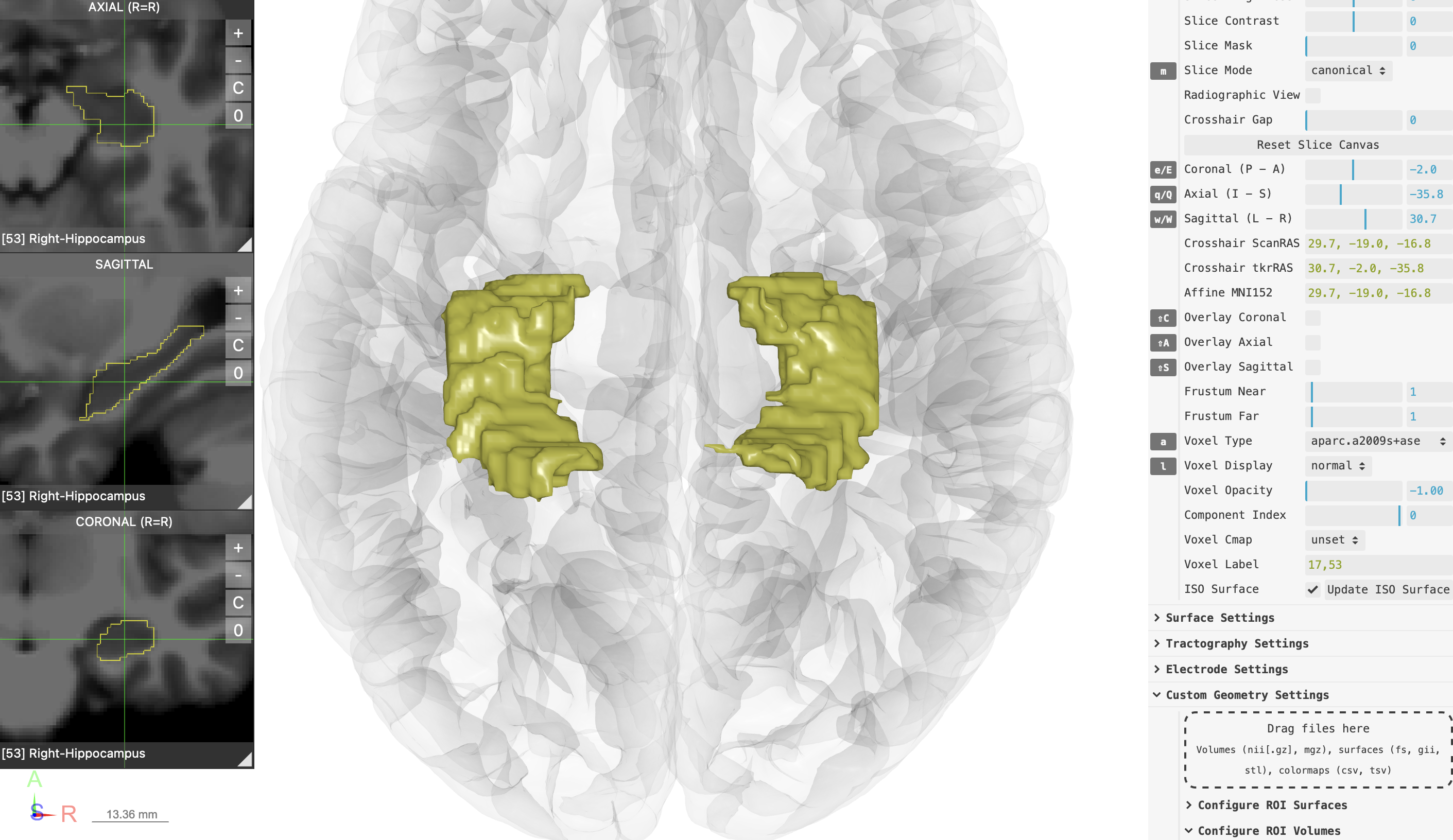
Volume Settings>Voxel Type, choose the aparc.a2009s+aseg.mgz. Then enter theVoxel Labelthe atlas key indices. For example,17,53are the left & right hippocampus - For FreeSurfer-generated atlases, you can find the color index labels here
- You can turn the volume into surfaces by clicking on
Volume Settings>Update ISO Surface - For discrete atlases/masks, set
Volume Settings>Voxel Opacityto 0 to display the border of the masks rather than obscuring the underlay MRI (see screenshot below)
- If the color is not discrete, you may change the color mode by expanding control panel >
- To clear the object, open
Configure ROI Volumes>Clear Uploaded Volumes