
Overview
RAVE can now be operated by AI agents. An AI agent is a chat app that can also use other programs for you. Install the free RAVE Agents plugin (a small add-on for your AI app), then describe what you want in plain English. The agent works in the RAVE window you are watching, and takes care of jobs that used to take many clicks and a lot of time.
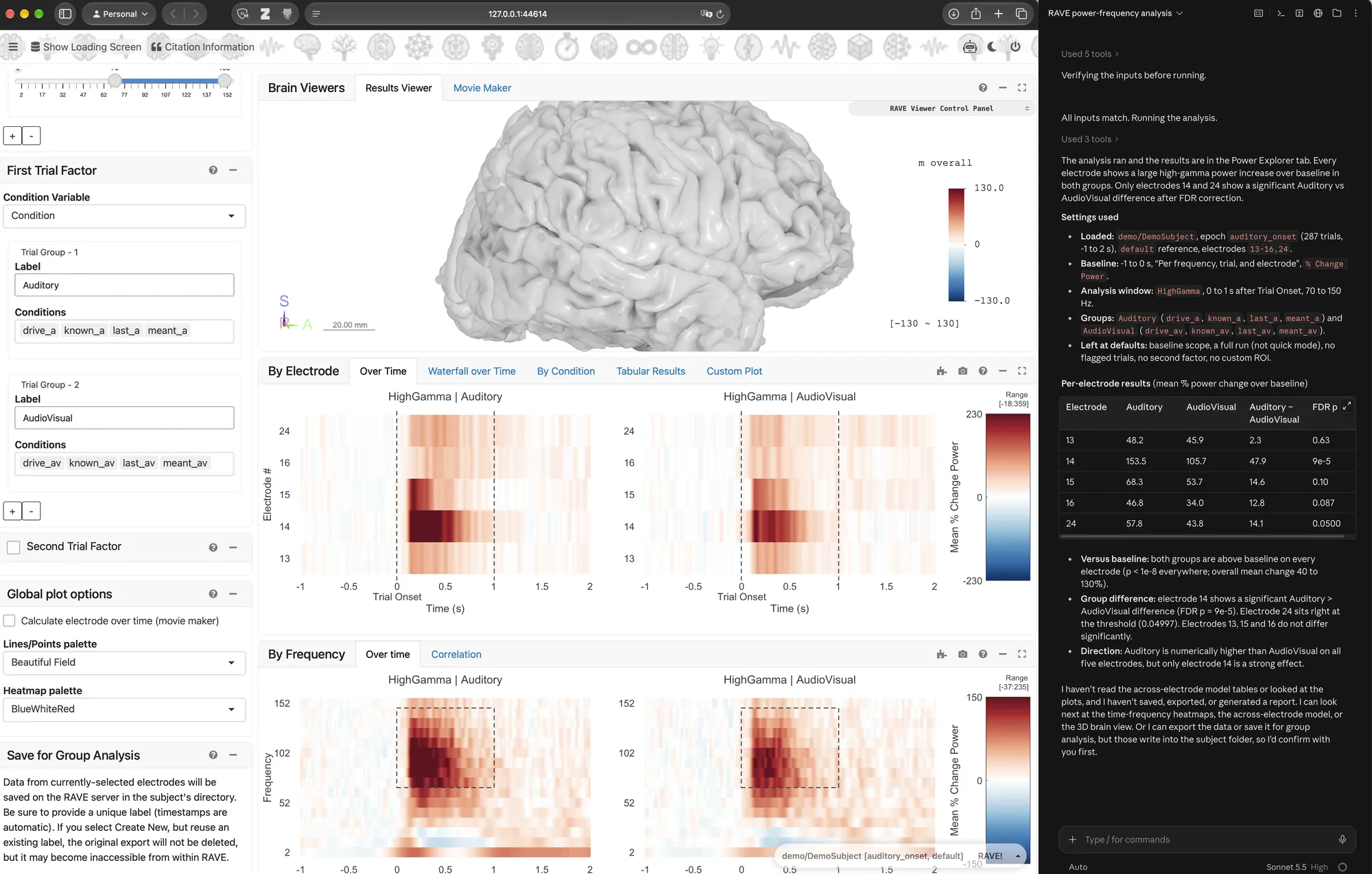
What can AI agents do for you?
Run a whole analysis from one request. Ask once, and the agent starts RAVE, opens the right module, runs the analysis, sums up the results and writes a report for you.
Use AI for quick answers about RAVE. Not sure how to do something, like switching the 3D viewer to the coronal layout or changing the colors? Just ask. You can choose to do it yourself, or let the agent do it for you.
Carry an analysis across modules. Found electrodes with significant broadband high-frequency responses in Power Explorer? Ask:
Load these electrodes in Voltage Explorer, apply the same analysis settings, and show me their ERP responses.
or
Load these electrodes in Power Clustering, apply the same analysis settings, and show me the response patterns.
No need to enter the same settings again in every module. Watch the video demo.
Apply the same analysis, different subjects, automatically. AI agents know how RAVE works. Describe the analysis you want, and the agent sets it up as a reproducible RAVE pipeline (a saved analysis you can run again). Or ask it to save your analysis as a reusable recipe (called a “skill”), then run it on all your subjects with the same settings.
Which AI agent?
RAVE Agents works with most AI agents, including Claude Code, OpenAI Codex, Google Gemini, GitHub Copilot and Cursor. This guide uses Claude Code in the Claude Desktop app as the example. Using a different AI app? See these setup instructions.
What you need
- RAVE, installed by following the Installation Guide.
- Node.js, a free helper program that RAVE Agents needs. You install it with RAVE’s Installation Guide (Step 1, then choose your operating system):
- On a Mac, it is part of the step “Install libraries using brew”. If RAVE is already installed, run that step again.
- On Windows or Ubuntu, follow the step “(Optional) Install Node.js for AI features”.
- An AI agent app. Most need a paid subscription. This guide uses the Claude Desktop app (for Mac or Windows) with Claude Code.
Step 1: Install RAVE Agents (one time)
These steps use the Claude Desktop app. Codex works in a very similar way: you add rave-ieeg/agents, then install RAVE Agents.
Open the Claude Desktop app and click the Code tab (the
</>icon at the top left).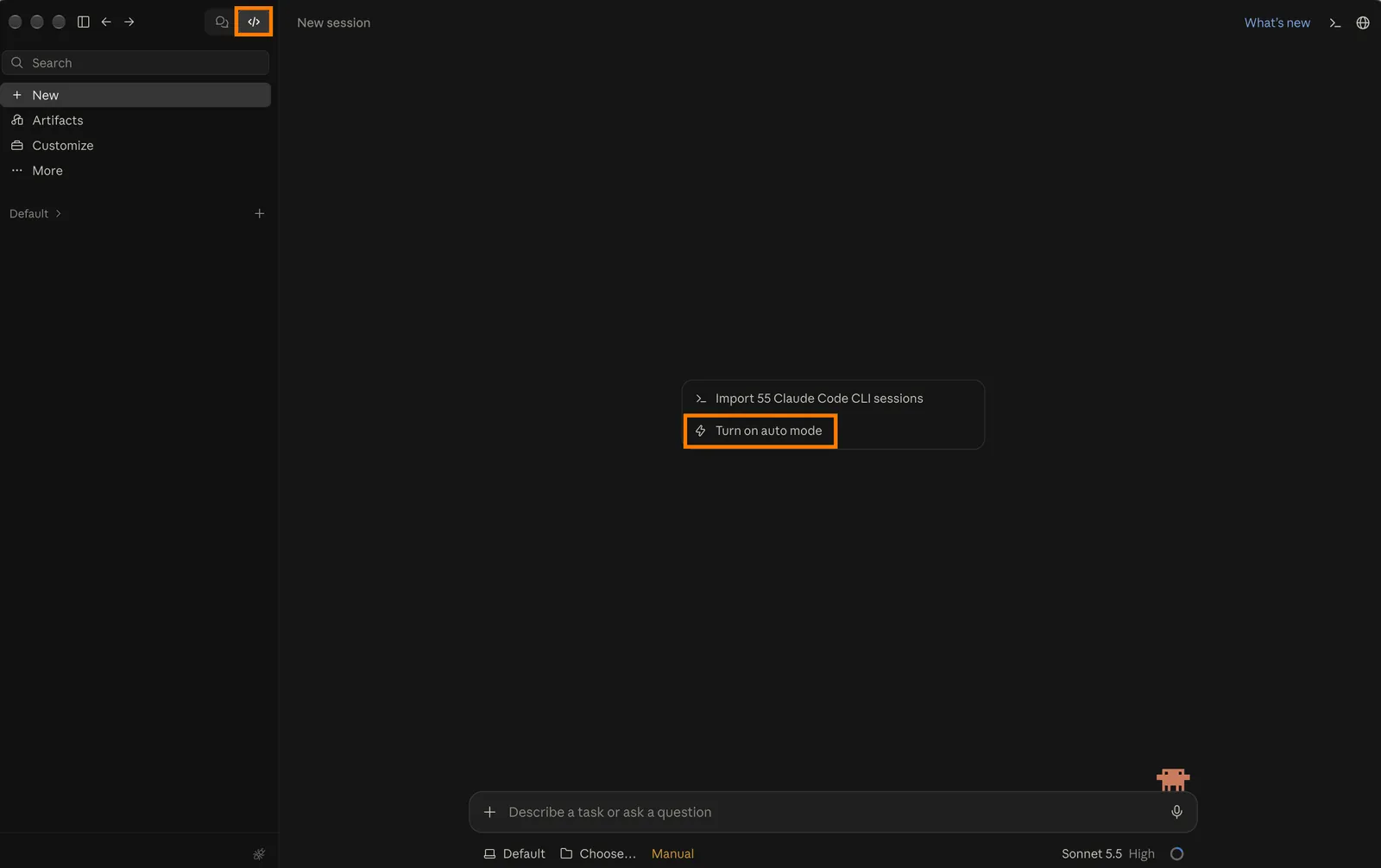
In the message box, type
/pluginand choose plugin (“Manage Claude Code plugins”). Words that start with/are shortcuts in the message box. You can also click Customize in the left sidebar, then Plugins.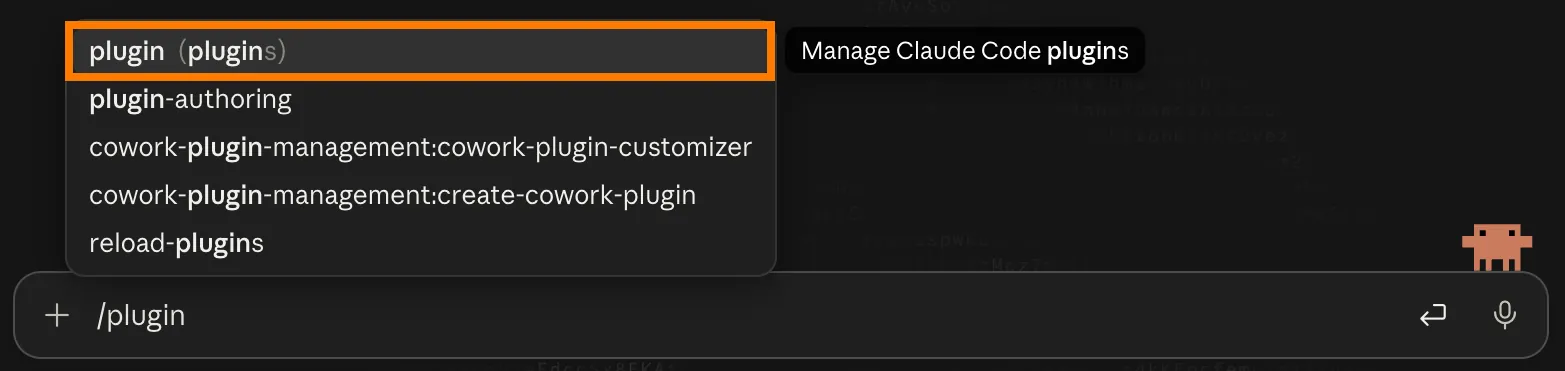
Click + Add, then Add marketplace. A marketplace is a list of plugins you can install. Type
rave-ieeg/agentsand choose Use “rave-ieeg/agents”.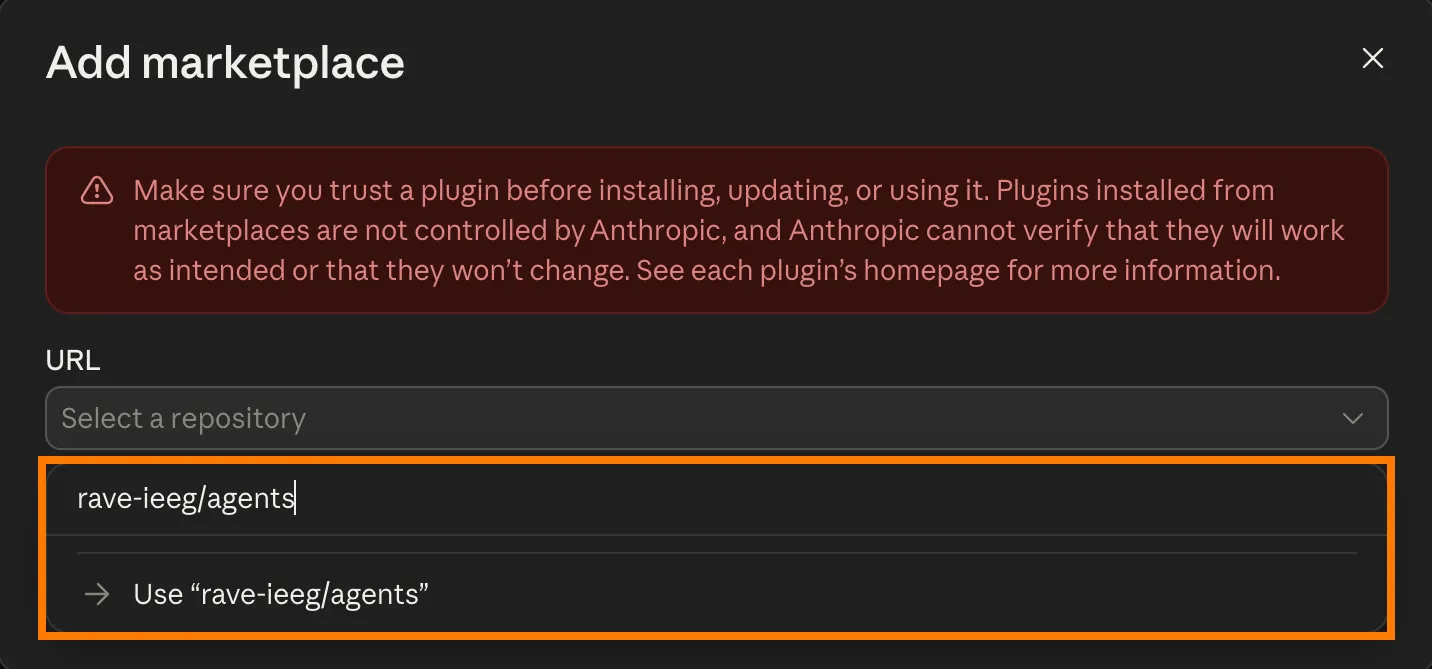
Don’t worry about the red warning: the app shows it for every plugin it didn’t make itself.
rave-ieeg/agentsis the RAVE team’s official plugin, published on GitHub.Find RAVE Agents in the list of plugins and click Install.
Make sure the switch next to RAVE Agents is on (blue).

Click + New in the left sidebar to start a new conversation, so that Claude picks up RAVE Agents.
Step 2: Ask
Tell the agent what you want, in your own words. Mention RAVE, so the agent knows to use RAVE Agents. In Claude, you can also start your message with /rave to make sure. For example:
/rave Start RAVE, I want to analyze the power-frequency data collected from demo/DemoSubject

demo/DemoSubject is the demo subject that comes with RAVE. If RAVE is not running yet, the agent asks before starting it. Click Start RAVE, and RAVE opens in your web browser.
By default, Claude asks for your OK before each step, and one analysis can take more than 20 steps. To let it work without stopping, click Turn on auto mode (see the first picture in Step 1). Even then, RAVE Agents asks you before it loads data or saves anything.
Example: a power analysis in plain English
Here is what happened after the request above.
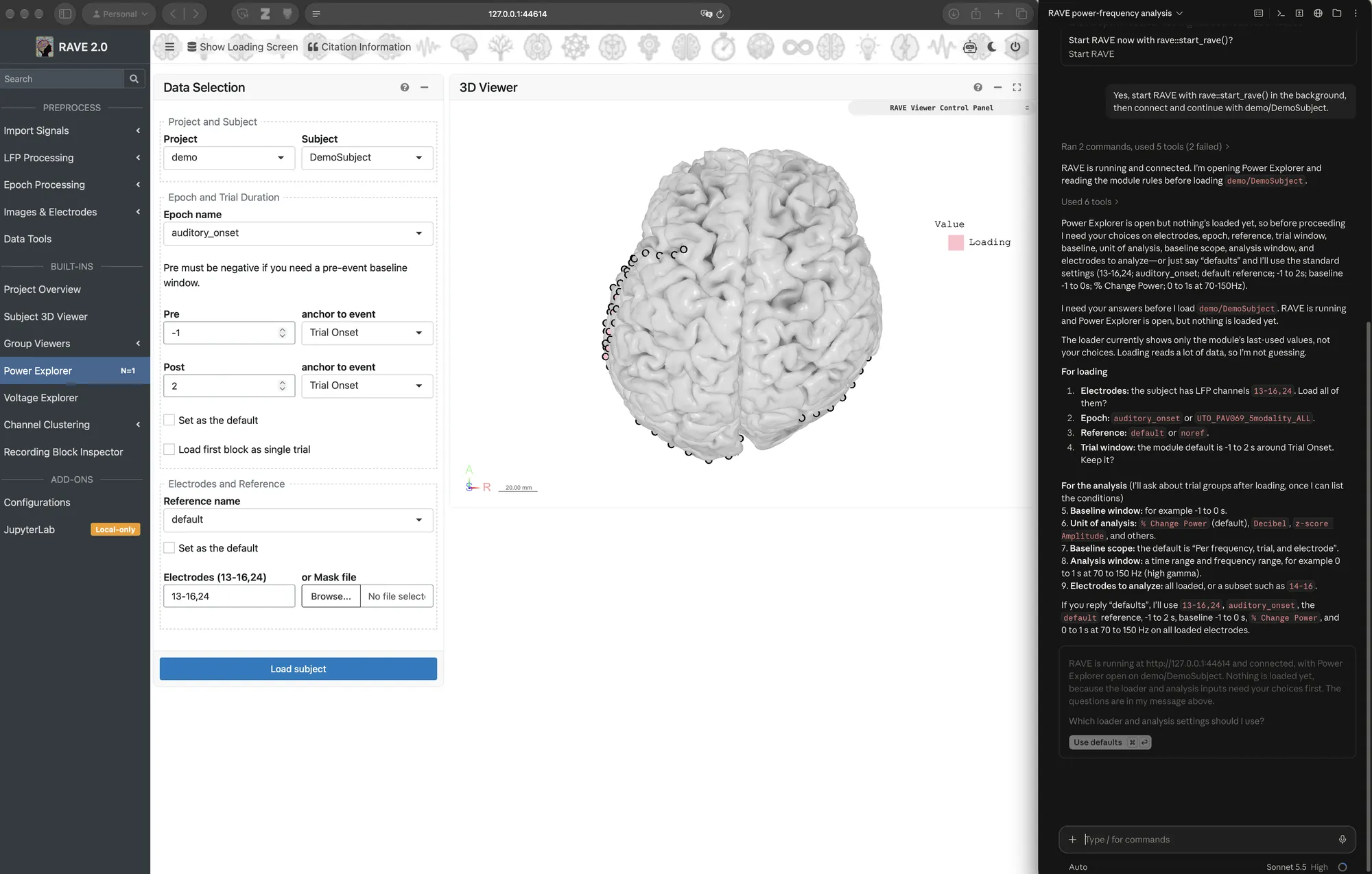
1. The agent asks for your choices before loading
The agent opened Power Explorer and listed every choice it needs: electrodes, epoch, reference, time windows, frequency range, and so on. Loading reads a lot of data, so the agent does not guess. Answer in your own words, or click Use defaults.
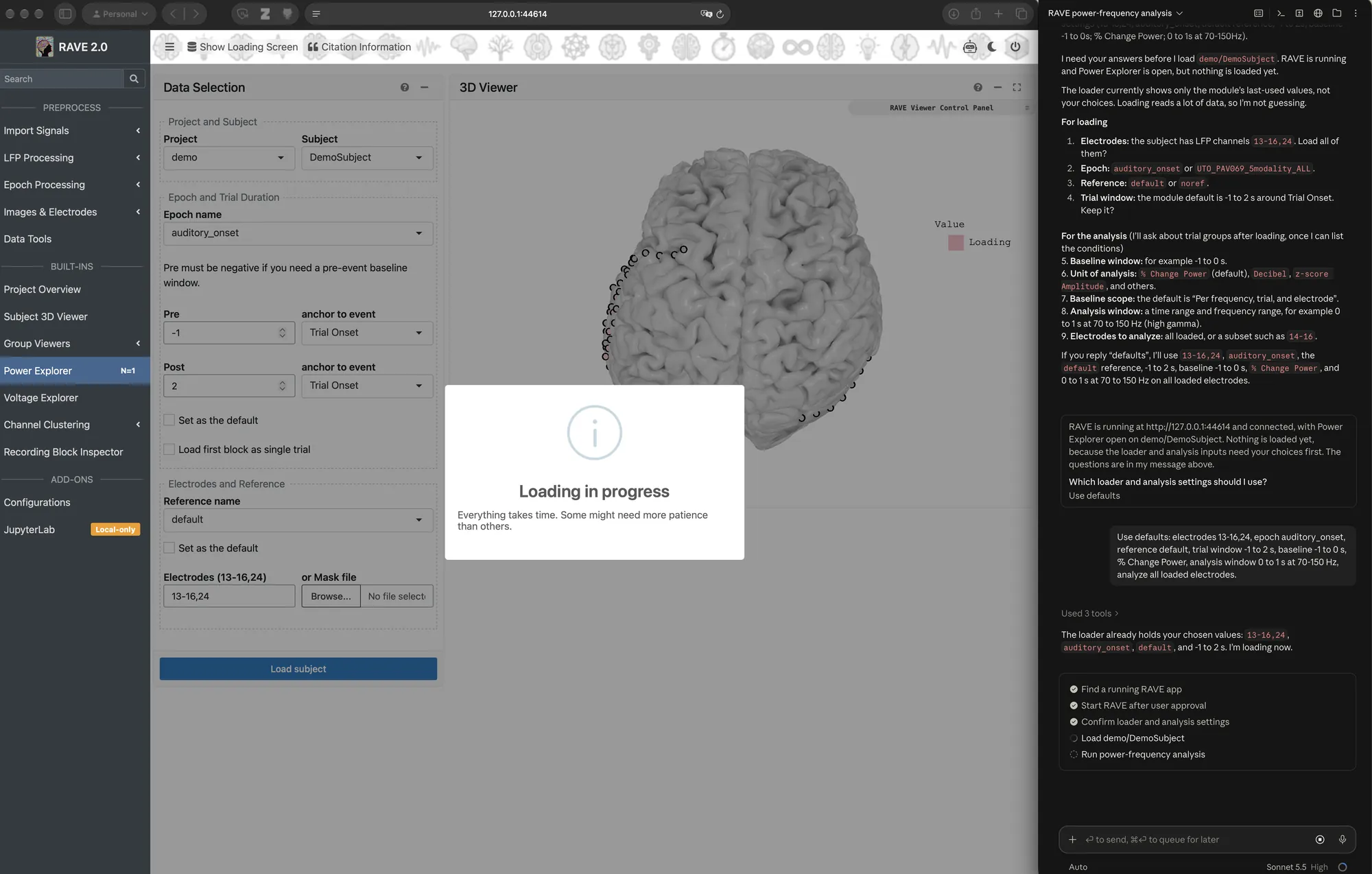
2. RAVE loads the data
The agent fills in the settings and loads the subject. Its checklist shows how far along it is.
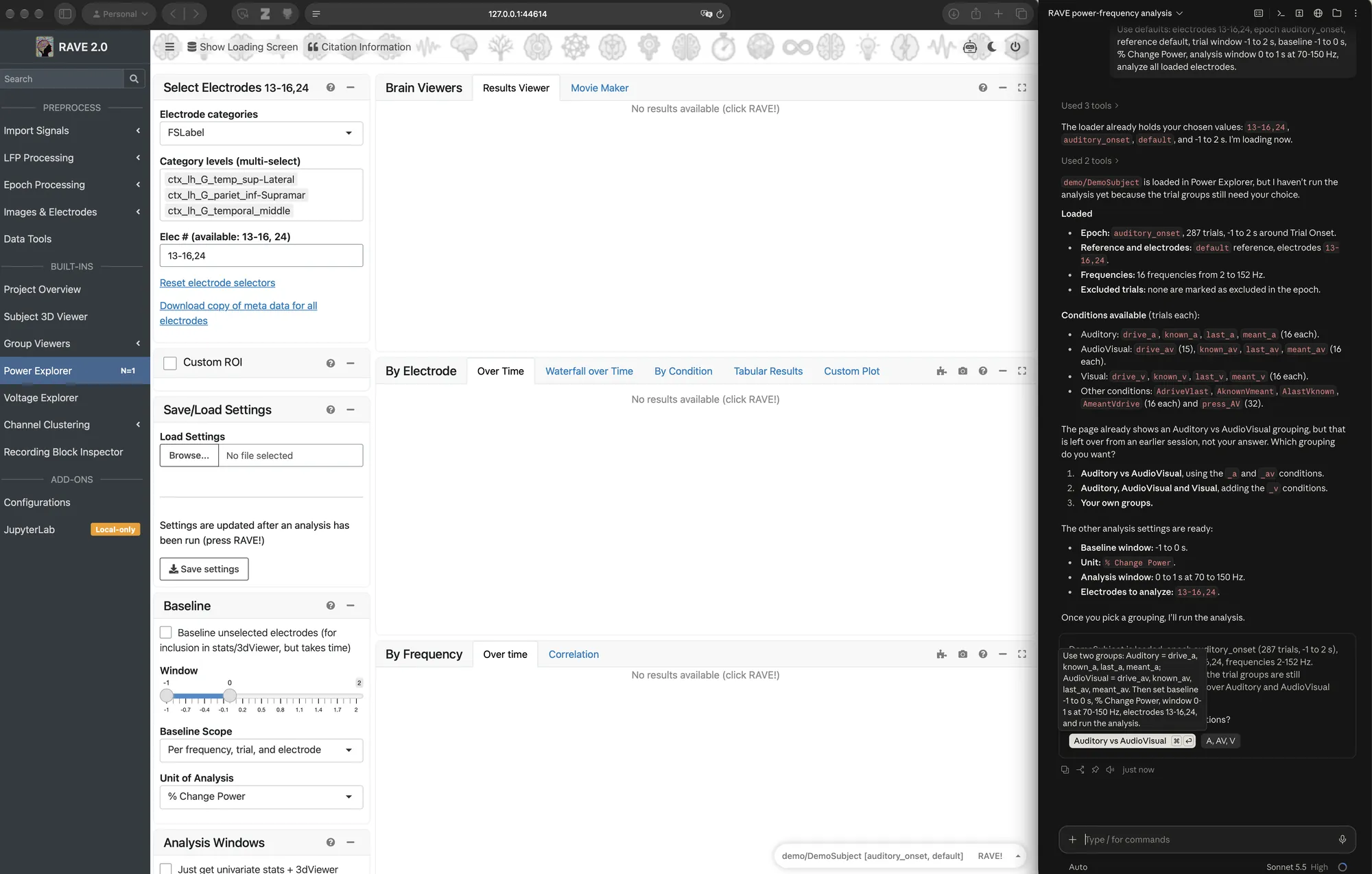
3. The agent asks how to group the trials
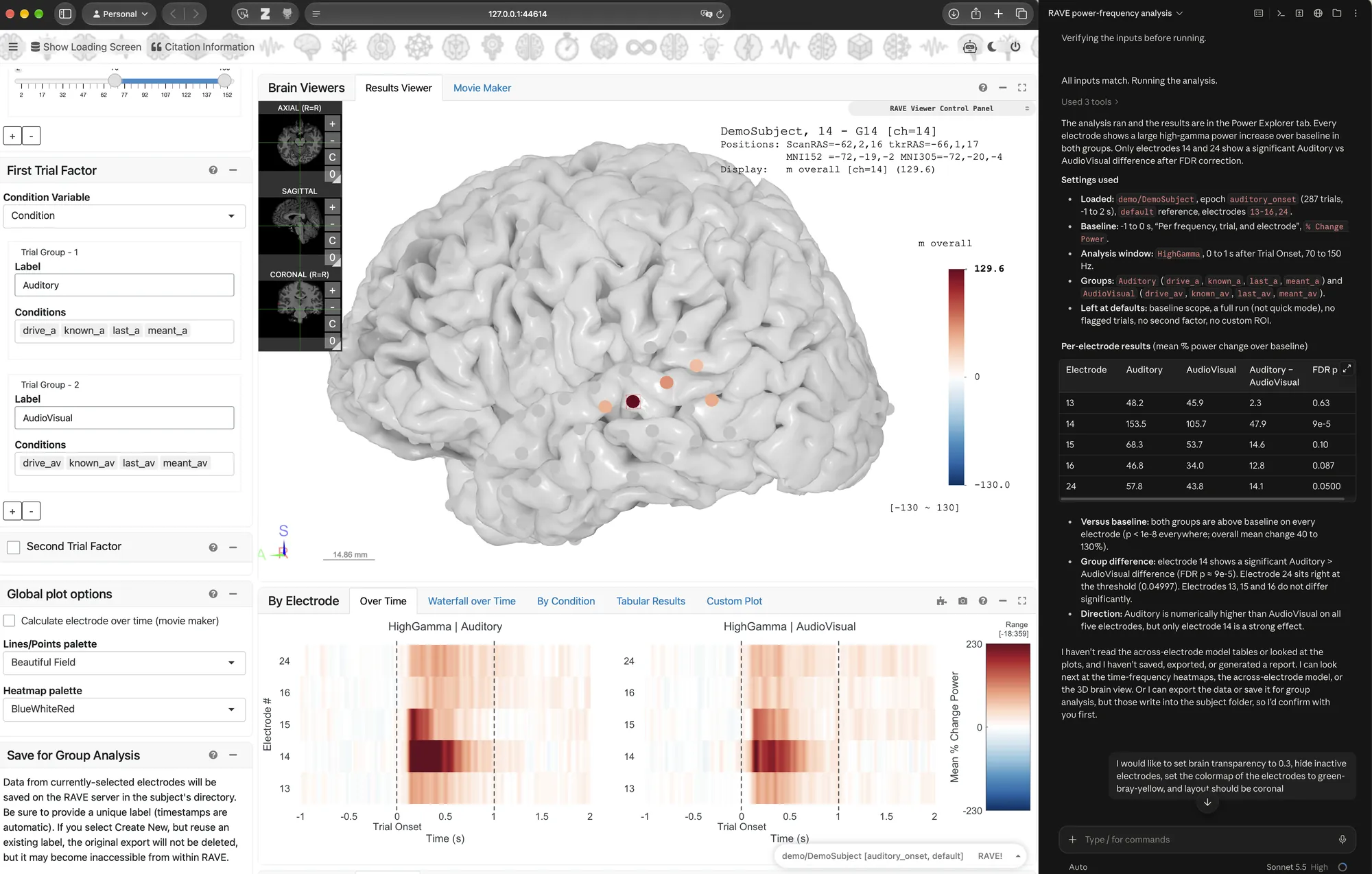
Once the data is loaded, the agent lists the conditions it found and asks how to group them. Here we compared Auditory with AudioVisual trials.
4. Read the results
The agent runs the analysis. The plots appear in RAVE (see the first picture on this page), and the agent sums them up in the chat:
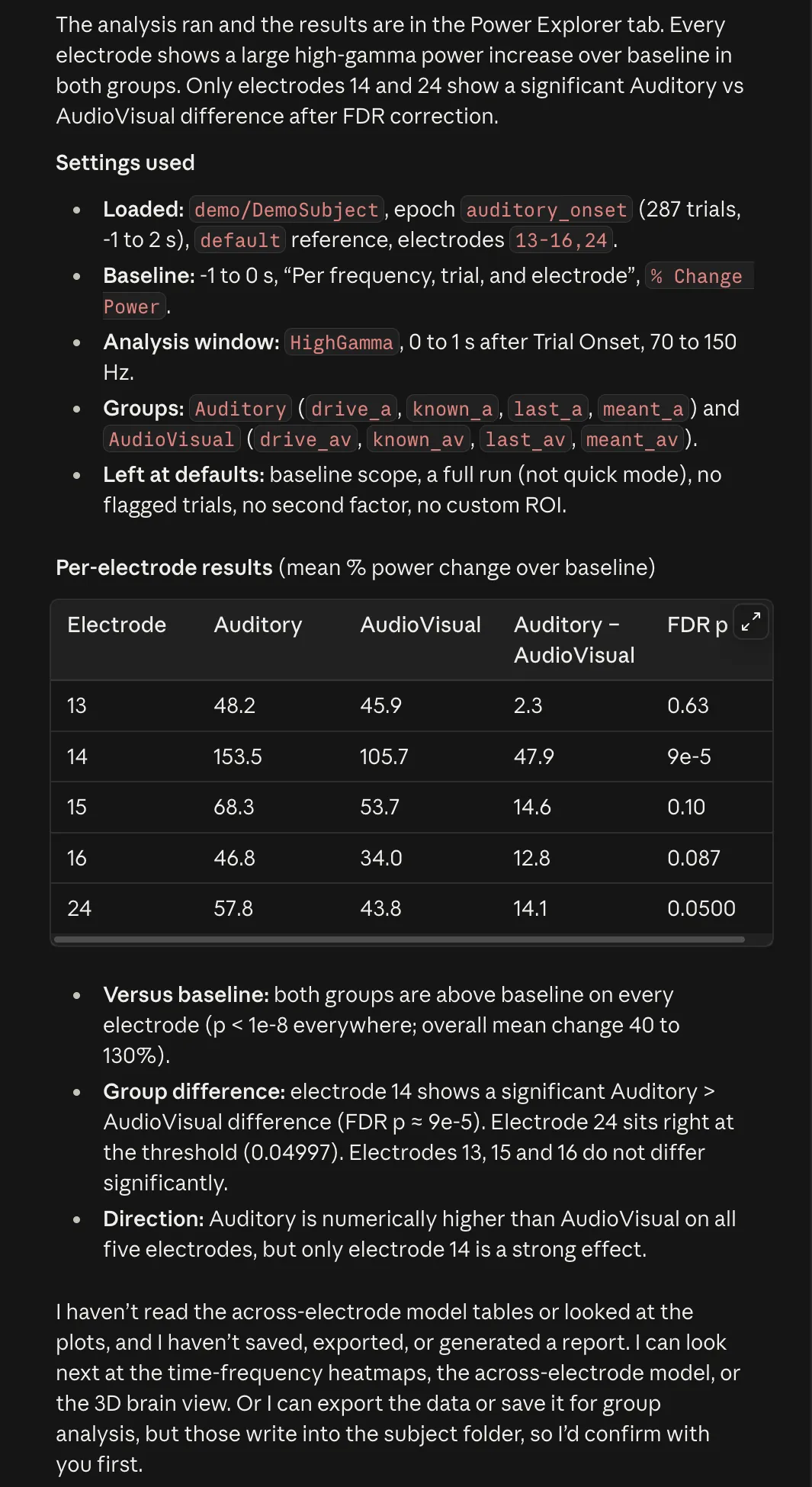
The agent also tells you what it has not done: it has not saved or exported anything, and it will ask you before writing into the subject’s folder.
Treat the agent’s summary as a starting point. The numbers come from RAVE, but always check the plots and tables yourself before you report anything. For example, the agent counts electrode 24 as significant, yet its corrected p-value (0.04997) sits right at the 0.05 cutoff.
You may see notes such as “(2 failed)” next to the agent’s steps. That is normal: the agent tries another way and keeps going.
Example: change the 3D viewer
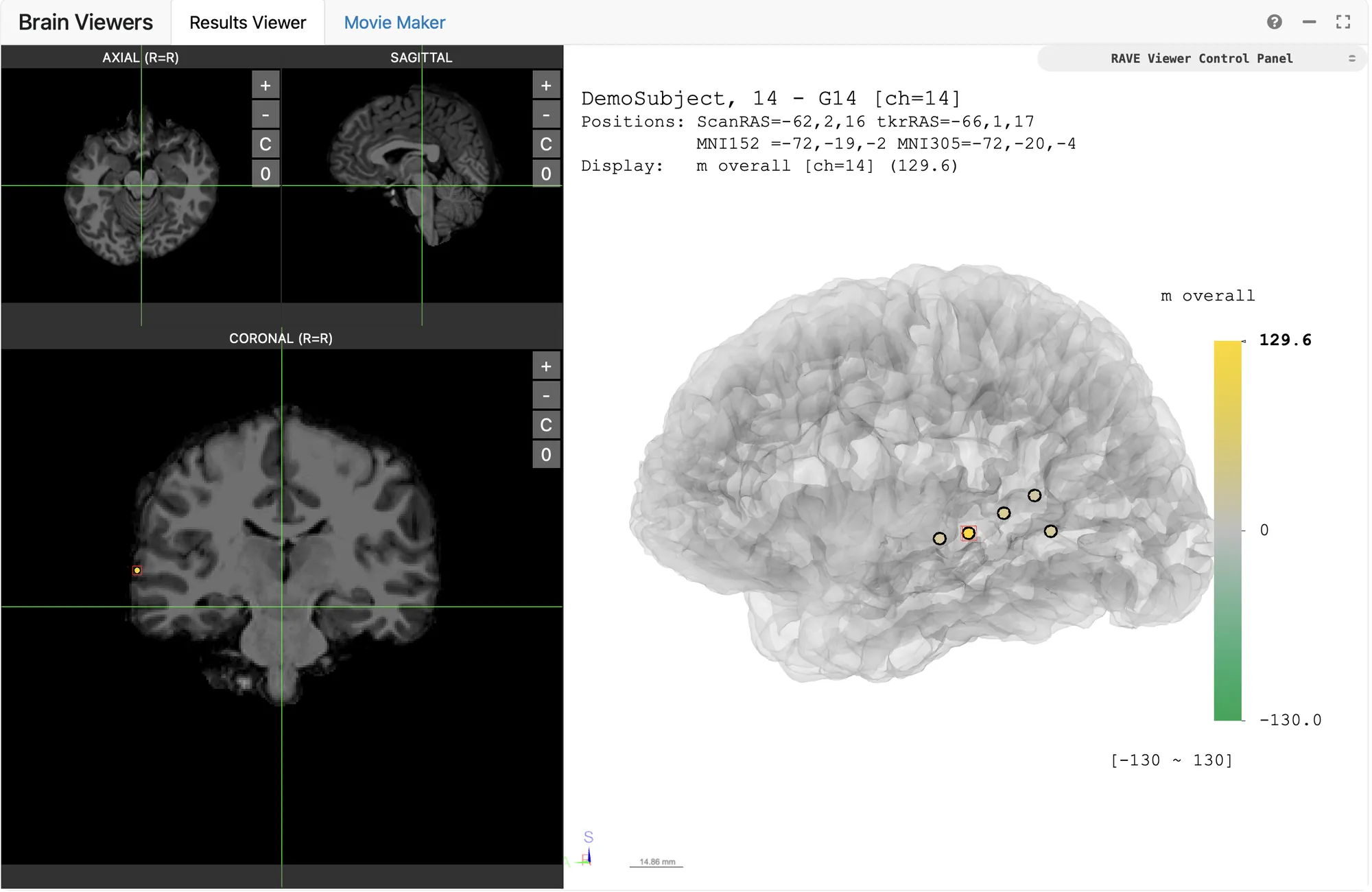
Next, we asked the agent to make the brain see-through, hide the electrodes without results, color the electrodes from green to yellow, and switch to the coronal layout:
Here is the result in RAVE’s 3D viewer:
Example: carry an analysis across modules
In this video, the agent drives RAVE across three modules: Power Explorer, Power Clustering and Voltage Explorer. It sets up the analysis settings in each module for you, runs the analysis, and sums up the results in the chat.
You retain control over the analysis. Agents assist with repetitive steps such as keeping analysis parameters consistent across modules and finding hidden buttons/outputs.
You stay in control
- The agent asks before big steps. RAVE Agents asks you before loading data and before saving or exporting anything into a subject’s folder.
- You can watch and take over. Everything happens in the RAVE window in your browser. You can stop the agent at any time, and change any setting in RAVE yourself.
- Check the results. The agent’s summaries help you find your way. They do not replace looking at the data.
Privacy
Never use protected health information (PHI). Never give an AI agent patient names, dates of birth, medical record numbers, or any data that has not been de-identified.
- RAVE Agents runs on your computer. It does not send anything to the RAVE team.
- What the agent reads is sent to your AI provider as part of the conversation. This can include subject codes, analysis results, and pictures of the 3D viewer, which may show brain images.
- Follow your institution’s rules before using an AI agent with research data. Try it with the demo subject first.
If something goes wrong
- The agent cannot start RAVE. Start RAVE yourself (see Launch RAVE), then ask the agent again. This is more likely to happen on Windows.
- The agent does not seem to know RAVE. Check that RAVE Agents is installed and its switch is on (Step 1), and that Node.js is installed. Then quit your AI app completely and open it again: an app that was already open does not notice a newly installed Node.js.
- The agent gives you a passkey for the 3D viewer. Open the viewer’s control panel, paste the passkey into Passkey in the Default folder at the top, and click Connect.
- Updating RAVE Agents. Open the RAVE Agents plugin page (Step 1) and click Update when it is available.
- Still stuck? Ask on RAVE Discussions or email help@rave.wiki.